How to Fix Hands, Text and Logos in AI Image Edits
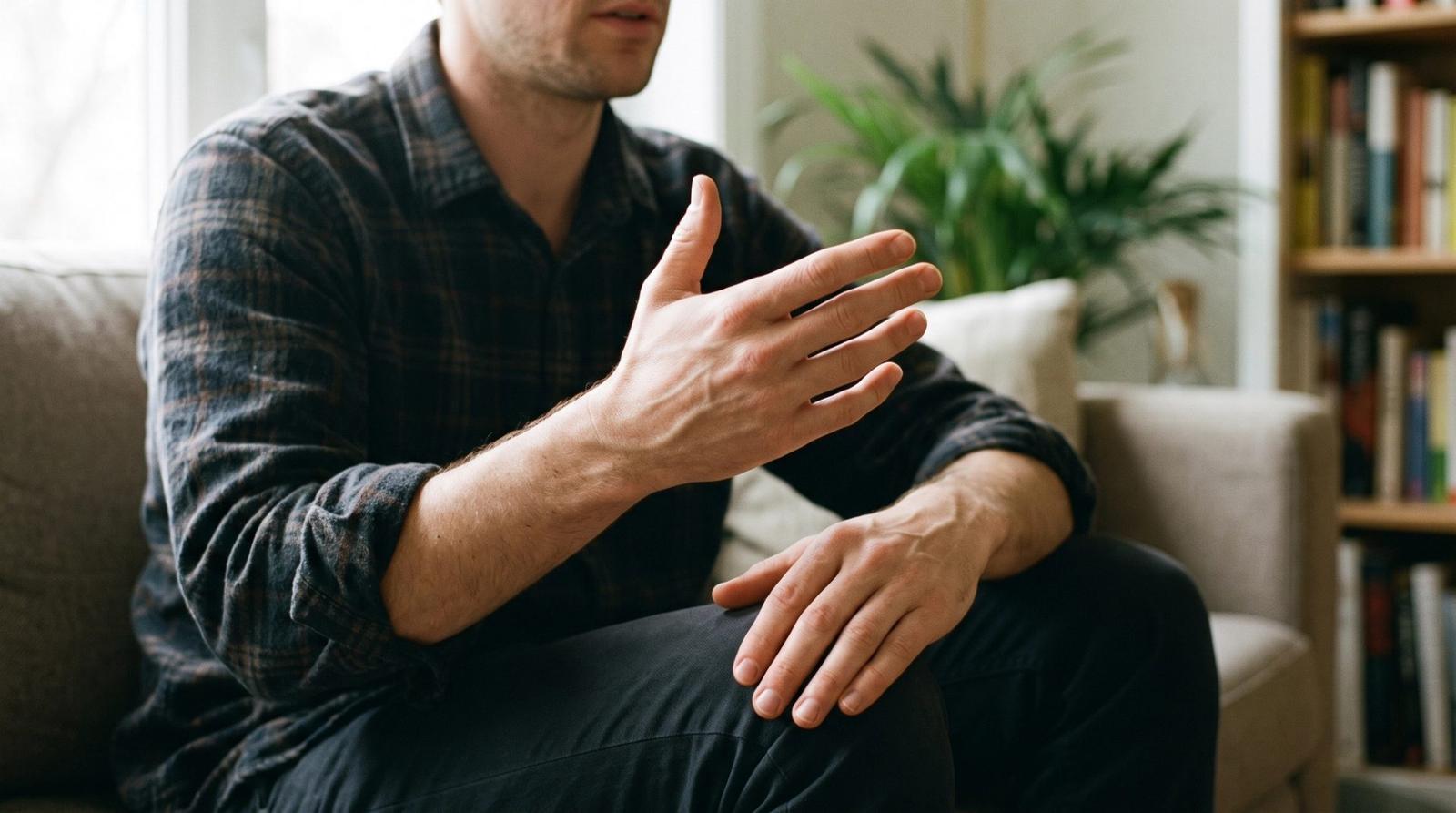
Most AI images fail in three predictable places: hands, text and logos. The instinct is to regenerate and hope, which throws away a frame that was otherwise working. A targeted edit instruction is faster and keeps everything you already liked about the image.
Why These Three Break
Hands have twenty-seven degrees of freedom and appear in training data in endless configurations, so the model averages them. Text and logos are symbolic rather than photographic — the model reproduces the look of lettering without the rules of spelling. Knowing the cause tells you the fix: constrain the pose for hands, and avoid generating symbols at all.
Repairing Hands With an Edit Instruction
Edit instructions work best when they name the region, the problem and the target state. Count the fingers explicitly; it is the single most effective phrase for hand repair.
Edit only the subject's hands in this photo. Correct the anatomy so each hand has exactly four fingers and one thumb with natural proportions, correct joint positions and realistic nail shapes. Keep the pose, lighting, skin tone and the rest of the image completely unchanged.If repair keeps failing, change the brief instead. Hands behind the back, in pockets, holding a simple object, or cropped out of frame all remove the problem at the source — and are legitimate editorial choices, not compromises.
Text: Generate the Space, Add the Words Yourself
The reliable workflow for any image containing words is to generate it with a clean blank area, then set the type in a design tool. You get correct spelling, your real typeface and crisp edges, which no model guarantees.
Edit this image to replace the text on the [sign / label / packaging] with a clean blank surface in the same color and material, preserving the existing perspective, lighting, reflections and any surface wear. Do not add any lettering.Logos: Composite, Never Prompt
A brand mark has exact geometry, spacing and color. Asking a model for it produces a near-miss that looks wrong to anyone who knows the brand, and in commercial work a distorted trademark is a real problem. Generate the product plain, then composite the official asset and match it to the scene.
- Ask the AI to render the surface, reflections and shadow — then place the real logo on top.
- Match the composite to the frame: same perspective, same highlight direction, same slight blur.
- For curved surfaces, warp the logo to the form before blending.
- Keep a vector copy of every mark you use; raster logos break at scale.
A Checklist Before You Publish
- Count fingers on every visible hand, including background figures.
- Zoom to 200% on any lettering; nonsense text is the fastest credibility loss.
- Check jewellery, watch faces and glasses frames — they distort like hands.
- Check teeth and ears in portraits; both are common failure points.
Edit the region, not the image. Constrain hands, blank the text, composite the logo — and you keep the frame you liked while removing the details that give it away.