How to Use Transform Mode to Instantly Swap and Edit Product Backgrounds
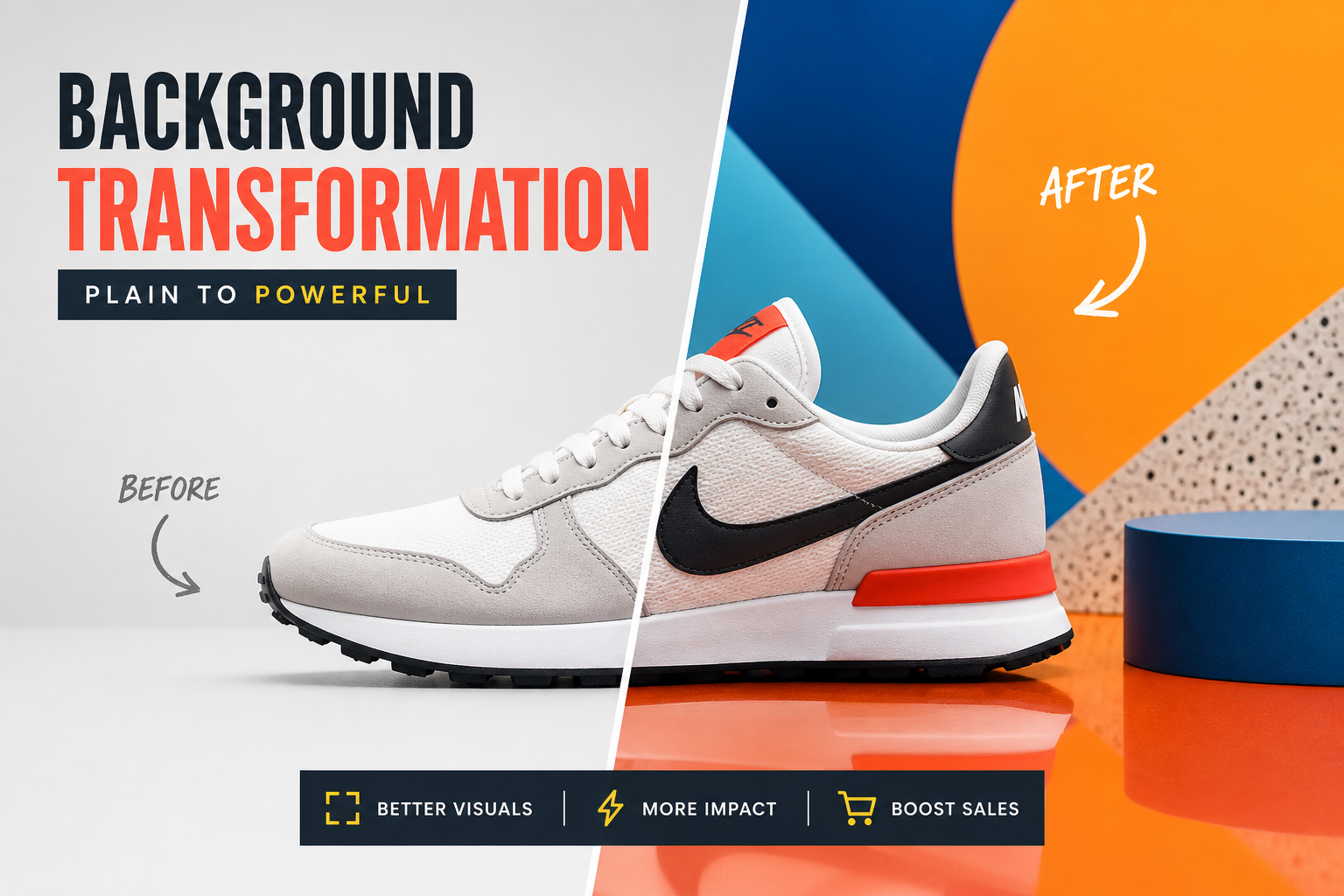
You shot a clean product photo, but the background is a boring kitchen counter. Reshooting is expensive; regenerating from scratch loses the exact product. Transform Mode solves both, it preserves your real foreground asset pixel-for-pixel while rebuilding everything behind it. Mastering the transform prefix is the single fastest way to scale a catalog of polished, on-brand imagery from photos you already have.
How Transform Mode Reads Your Image
Transform Mode treats your upload as a protected layer. Instead of inventing a new product, the engine analyzes the existing subject, locks its edges and surface, and then regenerates only the regions you tell it to change. The key is phrasing your prompt as an instruction about what to keep and what to replace, not a fresh description of the whole scene.
Step-by-Step: Swapping a Background
- Step 1: Upload a clean, well-lit photo of your product with clear edges.
- Step 2: Lead your prompt with the transform prefix that protects the foreground.
- Step 3: Describe only the new background scene and its lighting.
- Step 4: Explicitly ask the model to match shadows and reflections to the new environment.
- Step 5: Generate, then refine the scene wording until the product sits naturally.
Transform Prefix: transform: keep the product exactly as-is, preserve its edges, shape, colors, and reflections, replace only the background with [new scene + surface], relight the scene from [direction], cast a natural contact shadow beneath the product so it sits believably in the environment
The phrases 'keep exactly as-is' and 'replace only the background' are what stop the model from redrawing your product. The shadow and lighting instructions are what stop the result from looking pasted-in.
Avoiding the Pasted-In Look
The most common failure is a crisp product floating on a scene with mismatched light. Always tie the new environment's lighting back to the product: if the background implies a window on the left, request 'soft light from the left with a contact shadow falling right.' Consistency of light direction is what sells the composite.
- Protect edges explicitly ('preserve edges and reflections') to avoid halo artifacts.
- Always request a contact shadow so the product is grounded.
- Match light direction between the product and the new background.
- Keep background descriptions simple; over-detailed scenes compete with the product.
- Reuse one transform prefix across a catalog for consistent results.
Transform Mode turns a single packshot into an entire campaign. Lock the foreground, describe the world around it, and match the light. Upload your best product photo to Manus, paste the transform prefix above, and swap your first background in under a minute.